
Lux IPTV

Free Trial
Lux IPTV Logo

IPTV Installation Guide

šŸŽ‰ Introducing Lux IPTV Beta Web Player!

We’re thrilled to announce the beta launch of our brand-new Web Player feature.

  1. Install Firefox and launch Lux IPTV Web Player: http://lux-iptv.live

  2. Login with your IPTV username and password.

  3. Enjoy streaming!

Note: As this feature is in Beta, there may be instances where certain channels or movies do not load correctly. For full experience we always recommend IPTV players (refer below for the installation instructions for your device).


Web Player
Web Player

Lux IPTV offers seamless integration with any IPTV player, allowing users to choose their preferred platform. Premium options like IPTVX, TiviMate, and IBO Player Pro are recommended for enhanced viewing experience, while our installation guide provides step-by-step instructions for setting up the subscription with free alternatives.

Windows 10/11

  1. Download Hot PlayerĀ application for Windows:Ā  https://apps.microsoft.com/detail/9pl1l6tvq60k
  2. Install the application
  3. Open the application and click “Add New User“.
  4. Enter your username, password, and server URL. Then click “Add User”.

Apple Mac

  1. Download IPTVX application for MAC OS: https://apps.apple.com/us/app/iptvx/id1451470024
  2. Install the application.
  3. Open the application and click “Add New User“.
  4. Enter your username, password, and server URL. Then click “Add User”.

iPhone (iOS)

  1. Download Smarters Player LiteĀ application for iOS: https://apps.apple.com/us/app/smarters-player-lite/id1628995509
  2. Open the application.
  3. Click on “Add your playlist (via XC API)” option then click on “Add user”.
  4. Enter your username, password, and server URL. Then click “Sign in”.
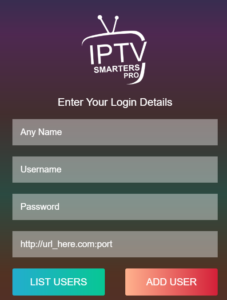
Android Mobiles

  1. Download IPTV BLINK PLAYERĀ for Android: https://play.google.com/store/apps/details?id=com.iptvBlinkPlayer&hl=en&gl=US
  2. Open the application.
  3. Enter your server URL, username, and password. Then click “Sign in”.

Ā 

Or download our custom player (.apk) via this link:Ā 
https://apk.st/FNDEP

MAG Box

  1. On the main portal screen, click on ā€œSettingsā€, press remote button ā€œSETUP/SETā€.
  2. Press on ā€œSystem Settingsā€ and click on ā€œServersā€.
  3. Select ā€œPortalsā€.
  4. In the ā€œPortal 1 nameā€ line enter the following ā€IPTVā€œ, in the “Portal 1 URL” line enter the server provided by us.
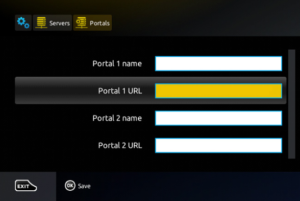
  5. Ā Press ā€œOKā€ to save the changes you made. And restart the device.

Firestick

  1. Install theĀ Downloader app (Click the Find > Search option on the home screen of Firestick).
  2. Type the name of the app ā€œDownloaderā€œ, and install it.
  3. Get back to the home screen of Firestick after installing the Downloader app In the menu bar, clickĀ Settings.
  4. In theĀ Settings, choose the optionĀ My Fire TV.
  5. ClickĀ Developer OptionsĀ >Ā Install from unknown apps.
  6. Click onĀ DownloaderĀ to change the status toĀ ON.
  7. Open theĀ DownloaderĀ app.
  8. In the search box type:Ā 5207553
  9. Click GO, wait until the download completes, then click Install.
  10. OpenĀ LuxIPTV appĀ and click on ā€œAdd Playlistā€œ.
  11. Select a playlist and enter your IPTV username and password

SmartĀ TVs – Android TV / Box (Option 1)

  1. InstallĀ DownloaderĀ app from Google Play Store
  2. OpenĀ DownloaderĀ app
  3. In the search box type:Ā 5207553
  4. Click GO, wait until the download completes, then click Install.
  5. OpenĀ LuxIPTV appĀ and click on ā€œAdd Playlistā€œ.
  6. Select a playlist and enter your IPTV username and password

SmartĀ TVs (Option 2)

  1. From your TV menu, open APPS/Store and search forĀ Hot Player
  2. Download and InstallĀ Hot Player
  3. Open the application and take a note of your deviceĀ MAC Address
  4. Go to theĀ activation pageĀ of Hot Player and login with yourĀ MAC Address
  5. Upload your playlist via eitherĀ M3U LinkĀ orĀ Xtream Code
  6. Restart Hot Player app in your Smart TVĀ 
©2023-2026 LUX-IPTV